
Teachers can add a default image category to a project they want to assign to students. The image dialog will display this category when it is first opened.
Click the File menu and choose Project Settings.
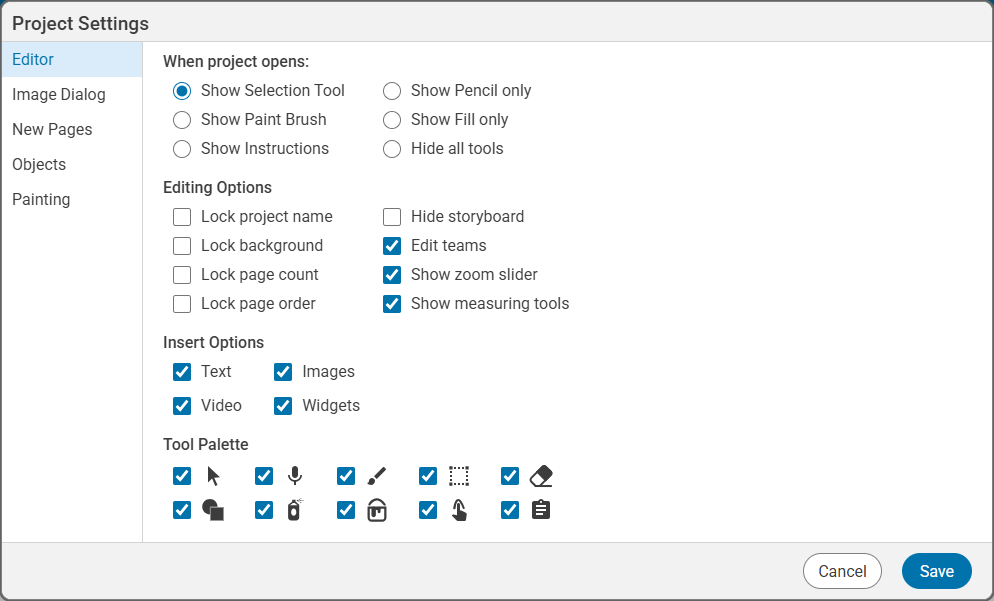
You will see the Project Settings dialog.
Click the Stickers, Pics4Learning, or Google Drive tab.
Choose a category of images.

Click the Save button.
Students will see this folder when they click the Image button after opening this template.
You will see the Project Settings dialog.
Click the Image Dialog button.
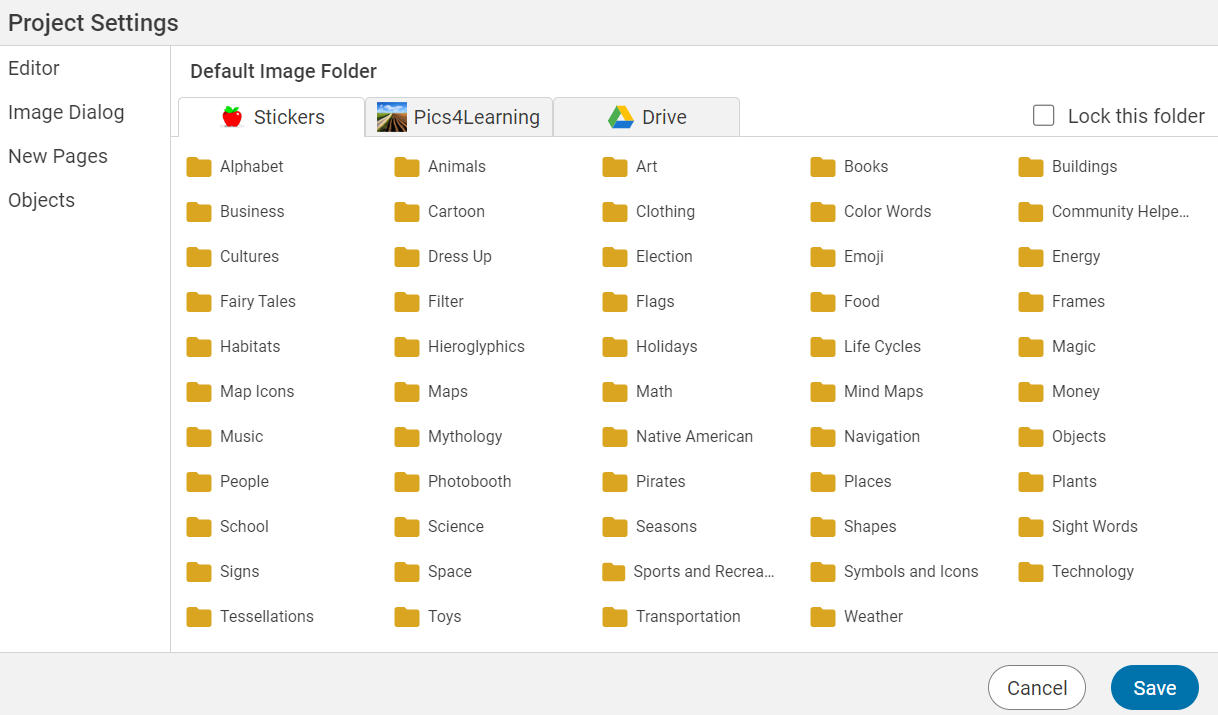
You will see the Stickers and Pics4Learning folders from the image dialog.
Click the Stickers, Pics4Learning, or Google Drive tab.
Choose a category of images.
If you do not want students to be able to leave this folder and browse other folders, click the Lock this folder check box.
Click the Save button.
Students will see this folder when they click the Image button after opening this template.